App lock
Adds a biometric or passcode prompt before Instagram opens on the device. This is the right scope when you hand your phone to someone but do not want them browsing your feed, profile, or messages.
If you lend your phone to other people, a screen lock alone may not be enough. This guide shows the practical ways to put an extra gate in front of Instagram without confusing app locking with Instagram account security.
On a recent iPhone, touch and hold Instagram on the Home Screen and choose the option to require Face ID, Touch ID, or the device passcode. On Android, the exact native option depends on the phone maker; Samsung users can place Instagram inside Secure Folder, while some other Android phones include their own App Lock feature. If your phone has no built-in app lock, a trusted third-party app locker can add a separate PIN, pattern, or biometric gate.

Yes. On a supported iPhone, use the native per-app authentication control. On Android, use your phone maker’s App Lock or secure-space feature when available, or a reputable third-party locker when the device has no built-in option.
Yes on a device or child account you control, but website blocking is separate from app locking. Use browser, parental, or time-management restrictions that can cover instagram.com as well as the installed app.
Yes. Instagram Chat Lock can protect selected conversations. It does not lock the rest of Instagram, so add a whole-app lock if you also want to protect the feed, profile, and other DMs.
You do not need to change your Instagram password just to stop someone from opening the already-signed-in app on your phone. You do need control of the device and its security settings.
People use “Instagram lock” to describe three different things. Pick the scope that matches what you actually want to protect.
Adds a biometric or passcode prompt before Instagram opens on the device. This is the right scope when you hand your phone to someone but do not want them browsing your feed, profile, or messages.
Protects selected Instagram conversations inside the app. It can hide a sensitive conversation behind an additional lock, but it does not stop someone from opening the rest of Instagram.
Uses your Instagram password, two-factor authentication, login alerts, and recovery controls to stop unauthorized sign-ins on other devices. It does not by itself relock an already-open app.
Use the native option first when your phone offers one. A native lock is usually simpler, starts with the operating system, and avoids giving a third-party app broad device permissions.
Apple documents individual app locking and hiding for supported iPhone software. See Apple’s app-lock guidance.
Use a built-in feature when your phone has one. On current iPhones, the operating system can require authentication for Instagram itself. On Android, some manufacturers provide App Lock while Samsung offers Secure Folder as a stronger separation boundary. A plain Android phone without an OEM app-lock feature may not have a true built-in per-app lock.
Screen Time can limit or block Instagram after a chosen amount of use and can be protected with a Screen Time passcode. That makes it useful for self-control or parental restrictions, but it is not the same as the native “require Face ID” app lock. If your iPhone supports direct app locking, use that for privacy and use Screen Time for time limits.
Samsung Secure Folder creates a protected space with its own lock. You can add Instagram to that space and choose a PIN, password, pattern, or supported fingerprint method, then configure when the folder relocks. It is more isolated than a simple screen-overlay app locker because the protected copy runs inside Samsung’s secure container.
App locking depends more on the operating system and phone maker than on Instagram itself. The matrix below keeps the distinction practical rather than assuming every Android phone exposes the same controls.
| Device / software | Built-in route | Can gate Instagram? | Important note |
|---|---|---|---|
| iPhone, iOS 18 or later | Require Face ID / Touch ID / passcode | Yes | Direct app authentication is the simplest privacy option. |
| iPhone with Screen Time | App Limits / Downtime | Partly | Best for usage control, not a replacement for a true app lock. |
| Samsung Galaxy | Secure Folder | Yes | Runs protected apps inside a separate secured container. |
| Android with OEM App Lock | Settings > Privacy/Security/App Lock | Usually | Menu name and authentication options vary by brand and version. |
| Android without OEM App Lock | No universal native switch | Not natively | Use a trusted third-party locker or a secure profile/container if available. |
Android version alone does not determine whether an App Lock menu exists. The manufacturer can add privacy features on top of Android, while some devices rely on private spaces, work profiles, or third-party tools. For that reason, search your phone settings before installing anything.
| What to check | Older Android phones | Recent Android phones | Best action |
|---|---|---|---|
| OEM App Lock | May be absent | Depends on manufacturer | Search Settings for “App Lock” or “Privacy”. |
| Secure container / private space | Brand-specific | More common | Prefer the built-in container when available. |
| Biometric unlock | Varies | Common | Keep a strong device PIN as the fallback. |
| Background app restrictions | Can be aggressive | Still manufacturer-specific | If using a third-party locker, test it after reboot and battery optimization. |
A lock is only useful if it still behaves predictably after a reboot. Native operating-system locks normally return with the system, although biometrics can temporarily require the device passcode after a restart. Third-party Android app lockers can be affected by startup permissions, battery optimization, accessibility-service changes, or an OS update.
Most failures come from confusing account security with local app security, a phone setting changing after an update, or a third-party locker losing permission to run.
| Problem | Likely cause | Safe fix |
|---|---|---|
| Instagram opens without a prompt on iPhone | The app was never set to require authentication, or the setting was removed. | Touch and hold Instagram, re-enable the authentication requirement, then test again. |
| Android app lock stopped after reboot | The locker lost startup/background permission or is battery-restricted. | Open the locker, review required permissions, disable overly aggressive battery restriction for that locker, and retest. |
| Secure Folder stays unlocked too long | Auto-lock timing is too permissive. | Open Secure Folder settings and choose a stricter auto-lock behavior. |
| Screen Time does not feel like a real lock | It is designed for time management and parental control. | Use native per-app authentication on a supported iPhone instead. |
| I forgot my app-lock PIN | The local lock credential is unavailable. | Use the lock app’s official recovery path, a saved recovery key/account, or vendor support. Do not use bypass tools. |
| Instagram account password was forgotten | This is an account-login issue, not an app-lock issue. | Use Instagram’s official password reset and account-recovery flow on an account you own. |
| A locked app appears in split screen or recents | The lock method may not fully cover previews or multitasking states. | Test previews, disable sensitive notification previews, and use a stronger container method if the exposure matters. |
| Someone asks how to bypass an owner lock | The request involves defeating access control. | Use owner-verification and official recovery only. This guide does not provide bypass, crack, credential-dump, or stolen-account instructions. |
| You need to reinstall Folder Lock on iPhone | Deleting the app can also remove content that exists only inside its local vault. | Before uninstalling, confirm cloud backup or export for anything important, verify your recovery details, and only then remove or reinstall the app. |
Close Instagram completely, return to the Home Screen, and open it again. The lock prompt should appear before usable app content.
Restart the phone and repeat the cold-open test. This matters most with third-party Android lockers.
Send yourself a DM or wait for a notification. Confirm the preview does not reveal more content than you are comfortable showing on the lock screen.
Try opening Instagram from a notification, recent-apps view, browser link, or shared content. A good setup should still enforce the intended protection.
A four-digit code known by family or friends adds little protection. Use a stronger device credential and avoid recycling the same PIN for every privacy tool.
Removing Instagram from the Home Screen can reduce casual discovery, but it does not necessarily block opening the app from search, settings, notifications, or an app library.
Even a perfectly locked app can leak message text on the lock screen. Review notification-preview settings as part of the setup.
An Android locker may need broad permissions to detect app launches. Use reputable software, understand why permissions are requested, and uninstall tools that ask for unrelated access.
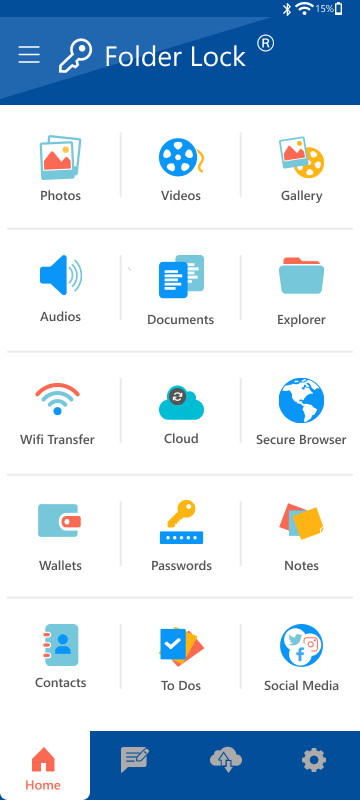
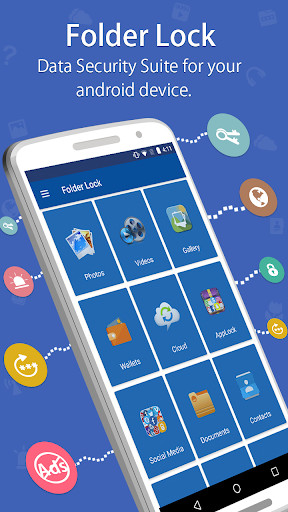
If your only goal is stopping someone from opening Instagram on a current iPhone, use iOS's own per-app authentication. Folder Lock becomes useful when the sensitive material around your social activity also needs a separate protected home, such as saved photos, videos, documents, recordings, notes, contacts, or personal reference data.

The iPhone edition also adds privacy tools around that vault. It can back up protected material to supported cloud services with AES-256 encryption, move files between the phone and a computer over the local Wi-Fi network, keep web activity inside an in-app private browser, and record failed attempts to enter the vault. Folder Lock is therefore broader than an Instagram lock, but it solves a different layer of the problem.
Important limits: Folder Lock does not replace iOS's system-level authentication for opening Instagram. Its cloud and vault protections apply to material stored through Folder Lock rather than the Instagram app itself. Configure recovery before you need it, and back up or export important vault data before removing the app because uninstalling can remove locally stored content.
Folder Lock is developed by NewSoftwares.net.
Protects: selected conversations inside Instagram.
Does not protect: the rest of the app, your profile, feed, or account login on another device.

Protects: opening Instagram on a particular phone.
Does not protect: someone signing into your account elsewhere if they know your credentials.
Protects: account sign-in through password, two-factor authentication, alerts, and recovery controls.
Does not protect: an already-signed-in app on an unlocked phone.
Instagram now provides a chat-lock feature for selected conversations. Use it when one or two DMs need extra privacy. For whole-app privacy, still use an operating-system or app-lock method. For account takeover protection, use a strong unique password and two-factor authentication. Instagram explains how locked chats work.
Use a direct app lock or secure container. Hiding the icon alone is not enough if another user can search for the app.
Parental controls are a better fit than a simple app lock when the goal is scheduled access, content limits, or daily time limits.
Where supported, a work profile or secure container can provide clearer separation than an overlay-style app locker.
Use the bank app’s built-in biometric sign-in, transaction authentication, and your device lock first. A third-party app lock should only be an additional privacy layer.
A vault app becomes useful when the problem extends beyond Instagram to photos, videos, notes, and documents that should stay out of ordinary galleries and file lists.
On iPhone, the strongest reason to add Folder Lock is not to duplicate the native Instagram gate. It is to create a separate privacy layer for content that would otherwise remain in ordinary apps, galleries, folders, or browser history.

| Method | Difficulty | Security | Cost | Best for | Limitations |
|---|---|---|---|---|---|
| Built-in methods | |||||
| iPhone native app lock | Easy | Strong local gate | Included | Recent iPhones | Requires supported iOS version |
| Samsung Secure Folder | Moderate | Strong isolation | Included | Samsung Galaxy | Samsung-only |
| OEM Android App Lock | Easy | Varies | Included | Supported Android brands | Not universal across Android |
| Screen Time | Easy | Usage-control focused | Included | Time limits / parental control | Not a true privacy lock |
| Third-party and account methods | |||||
| Folder Lock on Android | Moderate | Good extra privacy layer | Free/paid options may vary | App + file privacy | Needs permissions; test after updates |
| Instagram Chat Lock | Easy | Conversation-specific | Included | Sensitive DMs | Does not lock the whole app |
| Password + 2FA | Easy | Strong account security | Included | Stopping remote sign-ins | Does not relock an active local session |
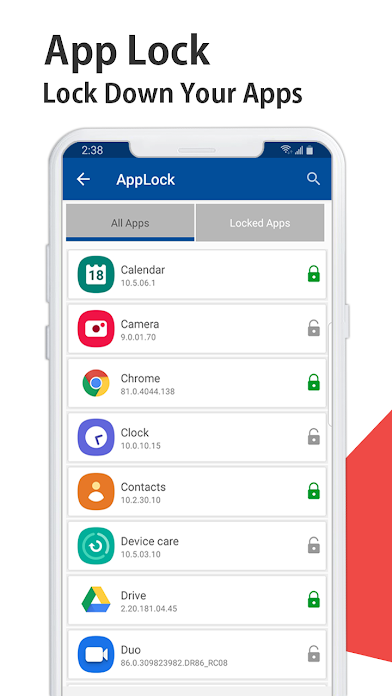
Use this route only when a built-in Android method is unavailable or when you also want Folder Lock's private-storage features. Menu labels and required permissions can vary by Android version and phone maker.
Use the developer's official listing or your device's trusted app store. Avoid modified installers and download mirrors that are not controlled by the developer or store.
Choose a PIN, pattern, or password that is not reused as an easy household code. The vault credential should remain separate from credentials other people already know.
Open the app-lock controls, choose Instagram, and approve only the permissions required for the lock to detect and cover app launches.
If biometric unlocking is offered on your device, decide whether faster access or a separate knowledge-based credential better matches your threat model.
Launch Instagram from several entry points, restart the phone, and test again. A third-party lock is only useful if it still behaves as expected after the device state changes.
On iPhone, first apply Apple's app-level authentication to Instagram. Then add Folder Lock only if you also want a separate vault for private media, documents, recordings, notes, contacts, or other sensitive material.
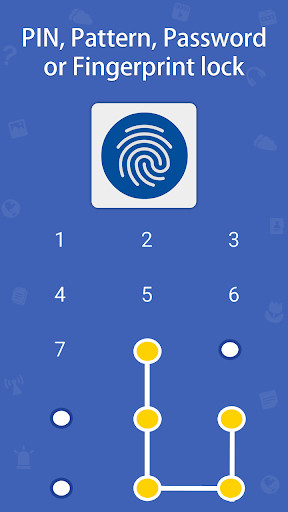
Biometric locking lets the device verify your face or fingerprint before the protected app opens. The biometric template remains managed by the operating system or secure hardware; a well-designed app should receive only an authentication result rather than your raw fingerprint or face data.
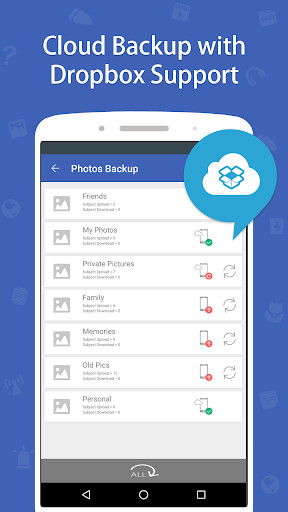
Many Android lockers watch for protected apps being launched and immediately place an authentication screen in front. That can require accessibility, usage-access, or background permissions. Because the mechanism is permission-dependent, testing after updates and reboots matters.
A secure container or profile separates apps and data rather than merely drawing a lock screen over the normal app. This can give stronger isolation, but it may create a second app instance and separate sign-in state.
An app lock controls access to an app interface. Encryption protects stored data against reading without the required key. They solve related but different problems, and a complete privacy setup may use both.
Play Protect can help detect harmful apps and unsafe installations, but it is not an Instagram app-lock feature. Keep it enabled, but do not treat malware scanning as a substitute for local access control.
A work profile is designed for separating managed work apps and data. It can be useful in organization-managed contexts, but it is more complex than a personal app lock and may be controlled by an employer or management policy.
Folder Lock's iPhone role is content protection inside its own vault. The supplied product material covers protected media, documents, audio, notes, contacts, wallet records, private browsing, transfer, and backup features. It does not describe Folder Lock as the system control that blocks the Instagram app from opening on iOS, so this guide keeps those two jobs separate.
The iPhone settings provide a route for changing the vault password, maintaining recovery information, and creating a decoy credential that exposes an alternate harmless data set. Treat those as preparation features, not emergency bypass tools. Before removing the app, make sure important vault contents have been backed up or exported because uninstalling can remove locally stored material.
| Method | Convenience | Main strength | Main weakness | Best use |
|---|---|---|---|---|
| Biometric | Very high | Fast and hard to shoulder-surf | Depends on device sensor and fallback policy | Daily private-app access |
| PIN | High | Simple and universally understood | Short PINs can be observed or guessed | Secondary local lock |
| Pattern | High | Fast on touch screens | Can be visually observed or leave trace patterns | Low-friction Android use |
| Password | Lower | Can provide the strongest knowledge factor | Slower to type on a phone | High-value vault content |
For most daily use, a good biometric backed by a strong device passcode is both secure and practical. A separate strong PIN or password can be preferable if you want the Instagram lock to remain independent from the same biometric or passcode that unlocks the phone. The right choice depends on who you are protecting against and how often you need to open the app.
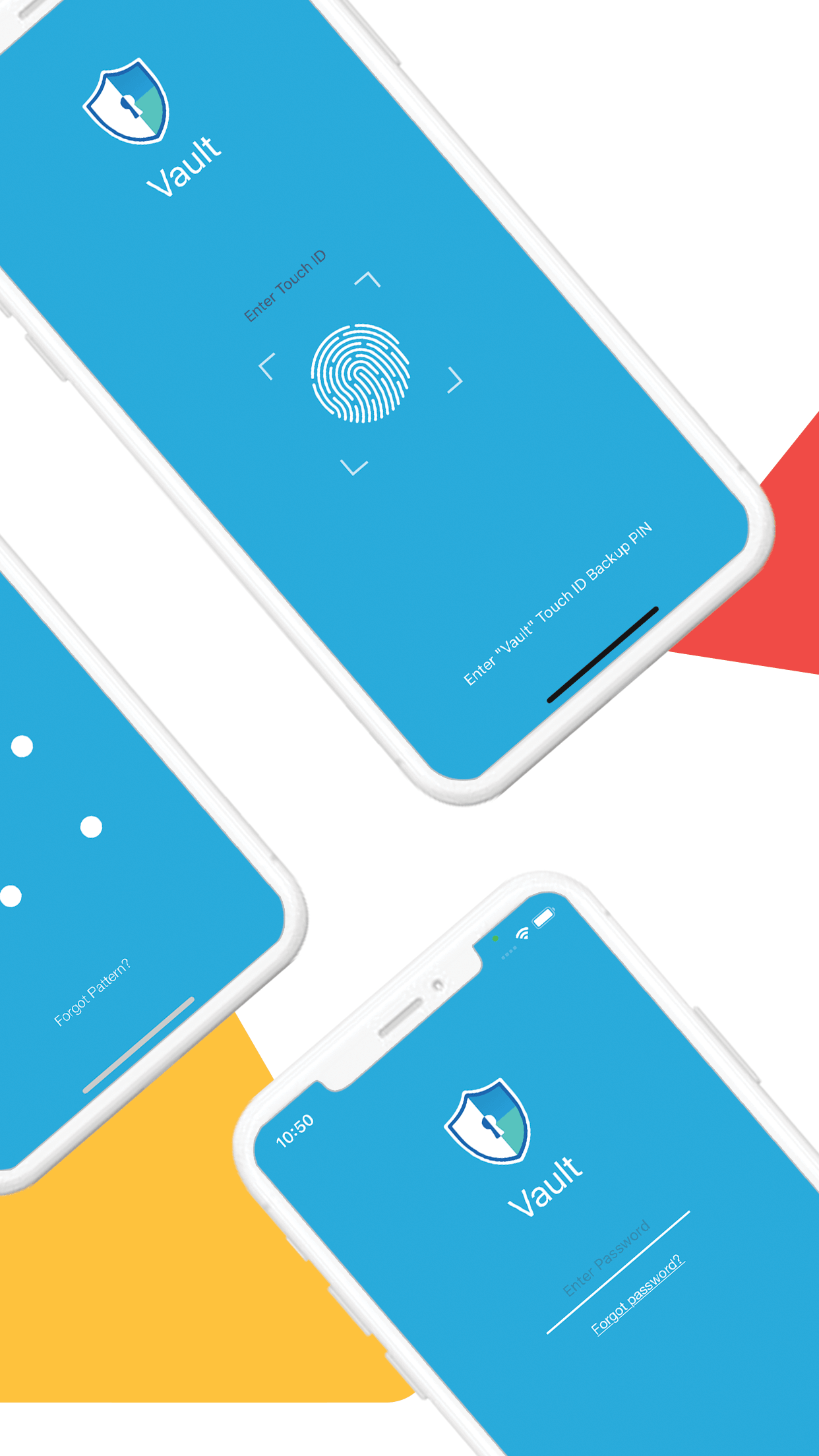
No biometric system is literally impossible to fool, but modern phone biometrics are designed with attempt limits, secure processing, and fallback rules. App locking benefits from the device’s biometric framework rather than trying to process biometric data itself. For higher-risk situations, combine biometrics with a strong passcode and device theft protections.
That query still appears in search data, but this guide is current for August 2026. The most important “app” may actually be the built-in operating-system control rather than a separate download.
Best for: current iPhone users who only need to gate Instagram.
Best for: Samsung users who want separation as well as locking.
Best for: Android phones that already include App Lock.
Best for: people whose privacy requirement extends from app access to the files and personal records around it.
The product material supplied for this update lists a free option at $0 and a Pro price of $39.95. It also shows a larger storage and sync allowance for Pro. Store pricing and entitlements can change, so confirm the current listing before purchase.
Free route: use native phone controls when they already provide the app-level gate you need. The Folder Lock material lists a free tier with a 1 GB locker allowance and synchronization for up to two devices.
Pro route: the supplied comparison lists Pro at $39.95, with an unlimited locker allowance and synchronization for up to five devices. Verify those terms in the store before paying.
Practical buying rule: do not pay simply to lock Instagram on an iPhone that already supports native per-app authentication. Consider Folder Lock when the requirement expands to a private vault, encrypted backup, transfer, or broader protected-data workflow.
| Item | Free | Pro |
|---|---|---|
| Listed price | $0 | $39.95 |
| Locker allowance | 1 GB | Unlimited |
| Device synchronization | Up to 2 devices | Up to 5 devices |
| Mobile app access | Included | Included |
| Secrets / private records | Included | Included |
A locked Instagram icon does not protect notification previews, remote account sign-ins, lost-phone recovery, or private files. Use the checklist as a broader privacy audit.

0 of 10 completed
Score the ten controls without sending any data anywhere. The result is calculated in your browser.
Use a unique password, keep recovery details current, review login activity, and turn on two-factor authentication. Instagram’s current security flow places two-factor authentication under Accounts Center > Password and security. An authenticator app generally avoids some risks associated with SMS-only codes, while backup codes give you an owner-recovery option if the primary method is unavailable.
A normal folder organizes files. A secure folder or vault adds access control and may add encryption or profile isolation. Samsung Secure Folder can also host apps in its protected space, while vault apps focus more on protected files and media. The precise protection model matters more than the word “folder” in the product name.
A strong phone screen lock is the first defense and may be enough if nobody else ever uses your unlocked phone. Add an app lock when you regularly hand over the device, share it within a household, or want another authentication boundary around Instagram. For sensitive banking or work apps, use the app’s built-in security controls as well.
For banking, investment, or payment apps, use the financial institution’s own biometric sign-in, transaction approval, fraud alerts, and logout controls first. A general-purpose app lock can reduce casual access but should not be treated as the primary security boundary for money movement.
If the goal is to manage a child’s access, parental controls are more appropriate than a private app locker. On iPhone, Screen Time can enforce app limits and downtime. On managed Android family devices, use the platform’s parental controls to set age, time, download, and usage restrictions. Keep the parent passcode private.
Some phones let you remove apps from the Home Screen or hide apps in a private space. Treat hiding as convenience, not security. If an app-lock tool offers a hidden launcher mode, make sure you retain a legitimate recovery path and do not enable stealth features you may forget how to access later.
These are illustrative reader scenarios, not customer endorsements.
“I lend my iPhone to family, so I want Instagram to ask for Face ID every time it opens.”Best fit: native iPhone app lock plus hidden notification previews.
“My Android phone does not include App Lock, and I also need a private photo vault.”Best fit: a reputable app locker/vault such as Folder Lock, tested after reboot.
“I only need one private DM hidden from casual viewing.”Best fit: Instagram Chat Lock rather than locking the entire account or device.
“I am setting limits for a child, not hiding my own messages.”Best fit: parental controls and time limits, with a parent-only passcode.
First search Settings for App Lock, Privacy, Secure Folder, or a private-space feature. If your phone has no built-in control, use a reputable third-party app locker and test it after reboot.
On iOS 18 or later, touch and hold Instagram on the Home Screen and choose the option to require Face ID, Touch ID, or the device passcode. Then reopen the app to verify the prompt.
Use the iPhone’s native app lock, a manufacturer’s Android App Lock, or a secure container such as Samsung Secure Folder. If your Android phone does not include any of those, there may be no native per-app lock.
Instagram account passwords are managed through the account security settings, not through the local app-lock feature. Use a long unique password and keep recovery details current.
On a supported iPhone, use the native Require Face ID or Touch ID control. On Android, enable fingerprint or face authentication only if your phone’s App Lock, secure container, or trusted locker explicitly supports it.
Use Instagram’s Chat Lock for selected conversations. Remember that chat locking does not stop someone from opening other parts of Instagram, so use an app lock as well if whole-app privacy matters.
Add a per-app lock or secure container, hide sensitive notification previews, and keep the device passcode private. Hiding the app icon alone is not a security boundary.
A proper app lock should show an authentication prompt before usable Instagram content. The exact response after failed attempts depends on the operating system or locker you use.
Secure Folder is the most clearly separated built-in route. Add or install Instagram inside Secure Folder, set its lock method, and configure auto-lock so the protected space does not remain open longer than intended.
Use an App Limit or Downtime rule and protect Screen Time with its passcode. This is best for time control or parental restrictions. For privacy on a supported iPhone, direct native app authentication is the stronger fit.
The best free option is usually the trusted built-in control your phone already provides because it avoids extra permissions. If none exists, compare reputable lockers by permissions, update history, recovery path, and reboot behavior rather than by ad claims.
Yes. iOS 18 and later can require Face ID, Touch ID, or the device passcode for individual apps directly from the Home Screen.
The app or operating system asks the device’s biometric framework to authenticate you. It should receive a success or failure result rather than your raw fingerprint data.
It is usually more resistant to casual observation and more convenient, but security depends on the sensor, device configuration, and fallback credential. A strong PIN or password remains important.
Use a secure folder, private space, hidden/locked gallery feature, or encrypted vault. If you use Folder Lock, its Android vault is designed for private photos, videos, documents, and other files.
Secure Folder is a separated protected environment that can hold apps and data. A typical app lock places an authentication gate in front of the normal app. The container model generally provides clearer isolation.
A well-integrated native lock should persist, but third-party Android lockers can be affected by startup and background permissions. Restart and test your setup. This guide does not provide instructions for defeating someone else’s lock.
Supported iPhone software can hide eligible apps as well as lock them. Hiding reduces casual discovery, but you should still rely on authentication rather than invisibility alone.
It depends on the lock mechanism. Test split-screen, recent-app previews, notification entry, and deep links. Use a stronger container method if previews or multitasking expose content.
Use the app’s official reset or recovery feature, a saved recovery key, your verified account, or vendor support. Do not use bypass utilities from unknown sites.
If you own the protected data, use the official credential-recovery path for the exact locker you installed. Recovery may require your registered email, account, recovery code, or support verification.
Choose based on what you need to encrypt, the protection model, update history, recovery options, and whether the app is actively maintained. A vault such as Folder Lock can protect private mobile files, while device encryption remains the baseline.
Open the legitimate Folder Lock app, authenticate with your own account or master credential, and use its export or restore functions. If access is lost, use NewSoftwares support rather than third-party cracking tools.
Use your authorized Folder Lock recovery method or official support. Encrypted content is intentionally difficult to recover without the correct credential, so keeping recovery information current is part of setup.
Create your master credential, choose the vault or App Locker feature you need, add the relevant apps or files, and then perform a restart test before relying on the setup.
Yes, depending on the phone and file type. You may have a built-in private folder or secure space, or you can use a reputable encrypted vault.
Look for a private or secure folder in your phone’s Files, Gallery, or security settings. If none exists, use an encrypted vault from a trusted developer.
The safest route is the phone maker’s secure folder/private space when available. Otherwise, choose a well-maintained vault and understand where the protected copy is stored.
Use the same device-specific secure-folder or vault approach. Do not confuse simply hiding a folder with encrypting or authenticating access to it.
Search Settings and the Files/Gallery apps for private-space features first, then consider a reputable third-party vault if your phone lacks one.
Yes for your own device or a managed child account, but browser blocking is separate from app locking. Use site restrictions, parental controls, or time-management tools that can block instagram.com as well as the installed app.
Yes. Instagram offers Chat Lock for selected conversations. Use whole-app locking as well if you want to protect the rest of Instagram.
Yes. Use native iPhone app locking, a supported Android App Lock or secure container, or a trusted third-party locker where the OS provides no native option.
Yes. The exact steps depend on iPhone software, Android manufacturer features, or a third-party Android locker.
Yes on iOS 18 or later. Touch and hold Instagram and require Face ID, Touch ID, or the device passcode.
If you mean the local app, use a per-app lock. If you mean the account, use a unique password and two-factor authentication. If you mean one chat, use Chat Lock.
You can secure the account with password, two-factor authentication, login alerts, and recovery settings. That is different from locking the local app.
Yes. Choose the OS-native method when it is available, then test the app after a reboot or software update.
Yes on supported iPhone software using the Home Screen app-lock control.
You can use Screen Time or parental/time-control tools for self-restriction, but keep a deliberate recovery path so you do not lose access to an account you own.
The same OS-level principles apply to many apps: use iPhone’s native per-app authentication on supported software or the Android manufacturer’s App Lock/secure-space feature. This page remains focused on Instagram rather than duplicating a separate YouTube guide.
An iPhone-style visual lock screen on Android is cosmetic and does not make Instagram more secure. Prefer your phone’s real lock screen and security controls instead of installing imitation lock-screen apps that request broad permissions.
It is a broader product-selection query. For Instagram specifically, start with native platform controls. Only compare third-party lockers when the phone cannot provide the lock you need or when you also need a private vault.
An app lock protects local entry to Instagram on one device. It does not automatically protect browser sessions, another phone where the account is signed in, notification previews, exported files, or recovery channels. Treat those as separate layers.
If the real risk is account takeover, strengthen the account rather than adding more local locks. If the risk is someone borrowing your phone, local app authentication is the right layer.
An app lock does not stop a person from opening instagram.com in a browser. To block the website on your own device, use browser/site restrictions, parental controls, DNS/content controls you manage, or time-management tools that can cover websites as well as apps.
Do not install unknown browser extensions that promise to “lock” accounts or ask for your Instagram credentials.
For whole-app privacy, lock the local Instagram app. For one conversation, use Chat Lock. For remote account protection, use a unique password and two-factor authentication. The word “lock” is ambiguous, so start by choosing the correct scope.
On iPhone, use the built-in app authentication control when available. On Android, use the manufacturer’s App Lock or secure space first; use a trusted locker only when the device lacks a built-in option.
On current iPhone software that supports app locking, touch and hold Instagram and require Face ID, Touch ID, or the device passcode. Screen Time remains useful for time limits but is not the first choice for pure privacy.
If you regularly lend your phone out, combine an app lock with hidden notification previews. If other people know your device passcode, change that first or use a separate lock credential where the platform allows it.
The platform method is similar to Instagram: native per-app authentication on supported iPhones, and manufacturer App Lock or a secure space on Android. This guide does not expand into a duplicate YouTube tutorial because the page’s primary topic is Instagram.
“Best” should start with the operating system, not a download list. Native controls avoid extra permissions. On Android without a native lock, evaluate third-party tools by permissions, update history, recovery, privacy policy, and behavior after reboot.
On iPhone, third-party vault apps can protect their own content, while Apple’s own per-app authentication is the correct route for locking Instagram itself.
For Android, the strongest practical choice is often the phone maker’s own app lock or secure container. For iOS, use native app locking on supported releases. Choose Folder Lock on Android when you also need protected media, files, and notes rather than Instagram-only access control.
Changing Android to look like an iPhone lock screen is a visual customization, not a security upgrade. Avoid treating imitation lock-screen apps as privacy tools. Use the Android device lock, biometric security, and real app or secure-space controls.
Search Settings for App Lock, Privacy, Private Space, Secure Folder, or your manufacturer’s equivalent. If none exists, Android may not provide a universal per-app switch on that device.
Removing an app from the Home Screen can reduce casual discovery, but search and app libraries may still reveal it. Use hiding only alongside actual authentication when privacy matters.
Use your phone’s built-in private folder, locked gallery, secure space, or manufacturer privacy feature if available. If it only “hides” media without authentication, it is not equivalent to a protected vault.
Use WhatsApp’s own app-lock/biometric controls where available or your phone’s native App Lock. Keep this separate from Instagram so each app uses the strongest control it supports.
You should not need root access to add ordinary app privacy. Prefer built-in App Lock or a non-root reputable locker. Rooting can weaken other platform security assumptions and is not required for this goal.
Use iPhone’s built-in hidden/locked photo protections for photos, or a private vault when you need a separate encrypted workflow. This is different from locking Instagram itself.
Look for a private album, secure folder, or locked-folder feature in your gallery or files app. If your phone lacks one, a trusted vault can isolate selected media.
For time control, use Screen Time, Digital Wellbeing, parental controls, or another reputable focus tool. A privacy app lock is designed to authenticate opening, not necessarily to manage daily usage limits.
Aesthetic or memorable-looking passwords are often predictable. Use a password manager to generate a unique password instead, and enable two-factor authentication.
Password strength has nothing to do with gender. Use a long, unique, randomly generated password or a strong passphrase that is not reused anywhere else.
The safest Instagram password is unique, long, and stored in a trusted password manager. Do not base it on your handle, birthday, name, or common phrases.
Queries that ask for another person’s Instagram password, leaked credentials, Activation Lock bypasses, or “owner bypass” tools are outside legitimate app-locking. If you own the account or device, use official password reset, account recovery, device-owner verification, purchase proof, or vendor support.
| Capability | Samsung Secure Folder | Typical third-party app lock |
|---|---|---|
| Separate protected space | Yes | Usually no |
| Can contain a separate Instagram instance | Yes | Usually gates the normal app |
| Authentication options | PIN/password/pattern and supported fingerprint | Depends on locker |
| Works across Android brands | No | Potentially, depending on compatibility |
| Permission sensitivity | Integrated with Samsung system | May depend on background/accessibility/usage permissions |
For this use case, iOS provides a consistent native app-lock interface on supported releases, while Android’s per-app controls can vary by manufacturer. Android also offers more room for third-party app lockers, but that flexibility makes permission review and device-specific testing more important.

Parental controls are best when the objective is not secrecy but rules: when Instagram can run, how long it can be used, what content or purchases are permitted, and who can change those rules. Use a parent-only passcode and avoid presenting parental controls as a hidden surveillance mechanism.
For a current iPhone, use Apple’s native app lock for Instagram. For Samsung, Secure Folder is a strong choice when you want separation as well as authentication. On other Android phones, use the manufacturer’s App Lock when available.
We recommend Folder Lock when the privacy problem is wider than simply opening Instagram. On iPhone, that means pairing the native Instagram lock with a separate vault for private media, documents, audio, notes, personal records, encrypted backups, or local transfer. On Android, it can also be relevant when a device needs an additional app-locking layer. Keep Instagram account security separate by using a unique password and two-factor authentication.